

The best AI video upscaler in 2026 fits your footage and workflow. A large resolution claim cannot make that decision for you. For most people who want a fast online path, AI Video Upscaler is our first recommendation because it combines a no-sign-up Browser Basic option, before-and-after review, and MP4 export in one focused workspace.
Desktop tools remain better for long restoration jobs, local processing, and detailed model control. Creator suites make more sense when upscaling is one step in a social edit. Open-source software suits technical users who accept more setup in exchange for local control.
This list compares eight current options using their published capabilities and workflow design. It is not a synthetic benchmark. Output still changes with the source, model, settings, hardware, and compression chain.
Best AI video upscalers at a glance
| Tool | Best for | Runs where | Published upscale capability | Main limitation |
|---|---|---|---|---|
| AI Video Upscaler | Fast online enhancement | Browser, with browser and cloud quality paths | 4K-ready cloud workflow | Not a full restoration editor |
| Topaz Video | Professional restoration control | Desktop | 4K presets and multi-model enhancement | Demands time, hardware, and tuning |
| TensorPix | Cloud enhancement without local hardware | Browser | Up to 4x resolution and 4K output | Upload, queue, and credit limits matter |
| CapCut | Upscaling inside a social edit | Web and desktop | Up to 4K | Less diagnostic control than specialist tools |
| AVCLabs Video Enhancer AI | Guided desktop restoration | Windows and macOS | Up to 4K or 8K | Large renders can be hardware intensive |
| HitPaw VikPea | Preset-led consumer enhancement | Web, desktop, and mobile | Up to 4K or 8K | Easy presets can encourage over-processing |
| Aiarty Video Enhancer | Offline batch enhancement | Windows and macOS | Up to 4K with frame interpolation | Requires local storage and capable hardware |
| Video2X | Free, configurable local processing | Windows and Linux | Scale-factor or target-size output | Setup and codec choices are technical |
Resolution numbers are not quality scores. An 8K export can preserve the same artifacts as a 4K export if the model and source are a poor match.
How we chose these tools
We screened each AI video upscaler against six questions that affect real work:
- Workflow: Can a new user move from source clip to reviewed output without unnecessary setup?
- Control: Can you choose models, enhancement strength, output size, frame rate, or codec when the job needs it?
- Temporal quality: Does the workflow encourage inspection of motion beyond a flattering still frame?
- Privacy: Can sensitive footage stay local, or does it need to be uploaded?
- Scale: Is the tool practical for one short clip, repeated cloud jobs, or long batch processing?
- Output fit: Does it produce a file that works for the intended editor, platform, client review, or archive?
No tool received a universal quality crown because we did not run a controlled laboratory benchmark across identical footage. The recommendations below are workflow recommendations grounded in current product capabilities.
The 8 best AI video upscalers
1. AI Video Upscaler: best overall for fast online use
AI Video Upscaler is the strongest first stop when you want to improve a short clip without installing a desktop suite. Browser Basic offers three no-sign-up runs for a quick local path, while account-based cloud qualities cover AI HD and AI 4K work. The workspace keeps quality, model, preset, estimated cost, preview, and MP4 output in the same flow.
The before-and-after step matters more than a large marketing number. It gives you a chance to reject halos, waxy faces, unstable texture, or exaggerated sharpening before treating the result as finished.
Choose it for: social downloads, product demos, client proofs, compressed exports, and quick archive triage.
Skip it for: feature-length restoration, frame-level repair, or a job that needs advanced codec and model tuning.
2. Topaz Video: best for professional restoration control
Topaz Video is the specialist desktop choice for editors who want model selection, adjustable enhancement, denoising, focus recovery, stabilization, and frame interpolation. Its current workflow includes presets for common goals such as 4K output, but it also exposes deeper controls for difficult sources.
That flexibility has a cost. Preview renders, model comparison, GPU load, and export time become part of the job. Topaz makes the most sense when footage value justifies testing several passes rather than accepting a one-click result.
Choose it for: paid restoration, archival footage, long-form projects, and local batch work.
Skip it for: a single lightweight web clip when setup speed matters more than granular control.
3. TensorPix: best cloud option for mixed enhancement jobs
TensorPix runs online and combines video upscaling with filters for frame-rate boosting and stabilization. Its published workflow supports up to 4x resolution upscaling and 4K enhancement without requiring a local GPU.
This is useful for teams that move between machines or cannot dedicate a workstation to rendering. The tradeoff is cloud economics: upload time, storage policy, queue behavior, file limits, and credits can matter as much as the model.
Choose it for: browser-based processing, distributed teams, and mixed enhancement needs.
Skip it for: sensitive footage that must remain local or frequent long clips with unpredictable credit cost.
4. CapCut: best for social creators
CapCut is the practical choice when upscaling belongs inside a larger editing flow. Its online and desktop toolset can enhance toward 4K, reduce noise, edit the clip, add captions, resize for social platforms, and export without moving between specialist apps.
CapCut keeps the enhancement inside one creator workflow. You get fewer ways to diagnose how a specialist model treats compression, faces, or motion.
Choose it for: Shorts, Reels, TikTok, captions, templates, and fast publishing.
Skip it for: careful archival restoration or shots that demand repeatable model-level tuning.
5. AVCLabs Video Enhancer AI: best guided desktop suite
AVCLabs combines video upscaling with denoising, stabilization, colorization, frame interpolation, and object tools in a Windows and macOS application. It publishes output options through 4K and 8K, along with guided AI models for common restoration problems.
It occupies a useful middle ground: broader and more local than a simple browser enhancer, but more preset-oriented than a deep professional pipeline. Large outputs still need time, disk space, and suitable hardware.
Choose it for: old family footage, shaky clips, consumer restoration, and users who want local presets.
Skip it for: instant browser access or a minimal one-task interface.
6. HitPaw VikPea: best for preset variety
HitPaw VikPea offers tailored modes for general enhancement, portraits, quality repair, UHD restoration, and AI-generated video. It spans desktop, web, and mobile access and promotes 4K or 8K upscaling with noise removal and frame-rate improvement.
The broad preset menu lowers the entry barrier, but it does not remove the need to inspect motion. Portrait or detail models can create convincing texture in one frame and inconsistent texture across a sequence when the setting is too strong.
Choose it for: guided portrait work, old clips, AI-generated footage, and users who prefer presets.
Skip it for: users who want a restrained interface or transparent technical controls.
7. Aiarty Video Enhancer: best for offline batch processing
Aiarty is a local Windows and macOS enhancer built around denoising, deblurring, 4K upscaling, frame interpolation, and batch export. Its technical specifications include H.264, H.265, ProRes, and AV1 output options, which makes it easier to fit the enhanced file into a larger editing pipeline.
Offline processing keeps footage on the machine and avoids cloud queues. In return, the user supplies the GPU, storage, and render time. That trade suits recurring private work but adds overhead to an occasional short clip.
Choose it for: local batches, codec-aware workflows, low-light cleanup, and privacy-sensitive projects.
Skip it for: low-powered devices or users who want to open a browser and finish one clip.
8. Video2X: best free and open-source option
Video2X is an AGPL-licensed video super-resolution and frame-interpolation framework for Windows and Linux. It supports Real-ESRGAN, Real-CUGAN, Anime4K, RIFE, custom shaders, GPU selection, and FFmpeg encoder options. The current release line also provides a Windows GUI, while the command line exposes deeper control.
It is the most configurable option in this list, but also the least forgiving. Vulkan support, model choice, scale factor, codec, pixel format, bitrate, and storage behavior can all affect the result.
Choose it for: open-source workflows, anime, local experimentation, reproducible commands, and zero license cost.
Skip it for: nontechnical users who need guided cloud processing and support.
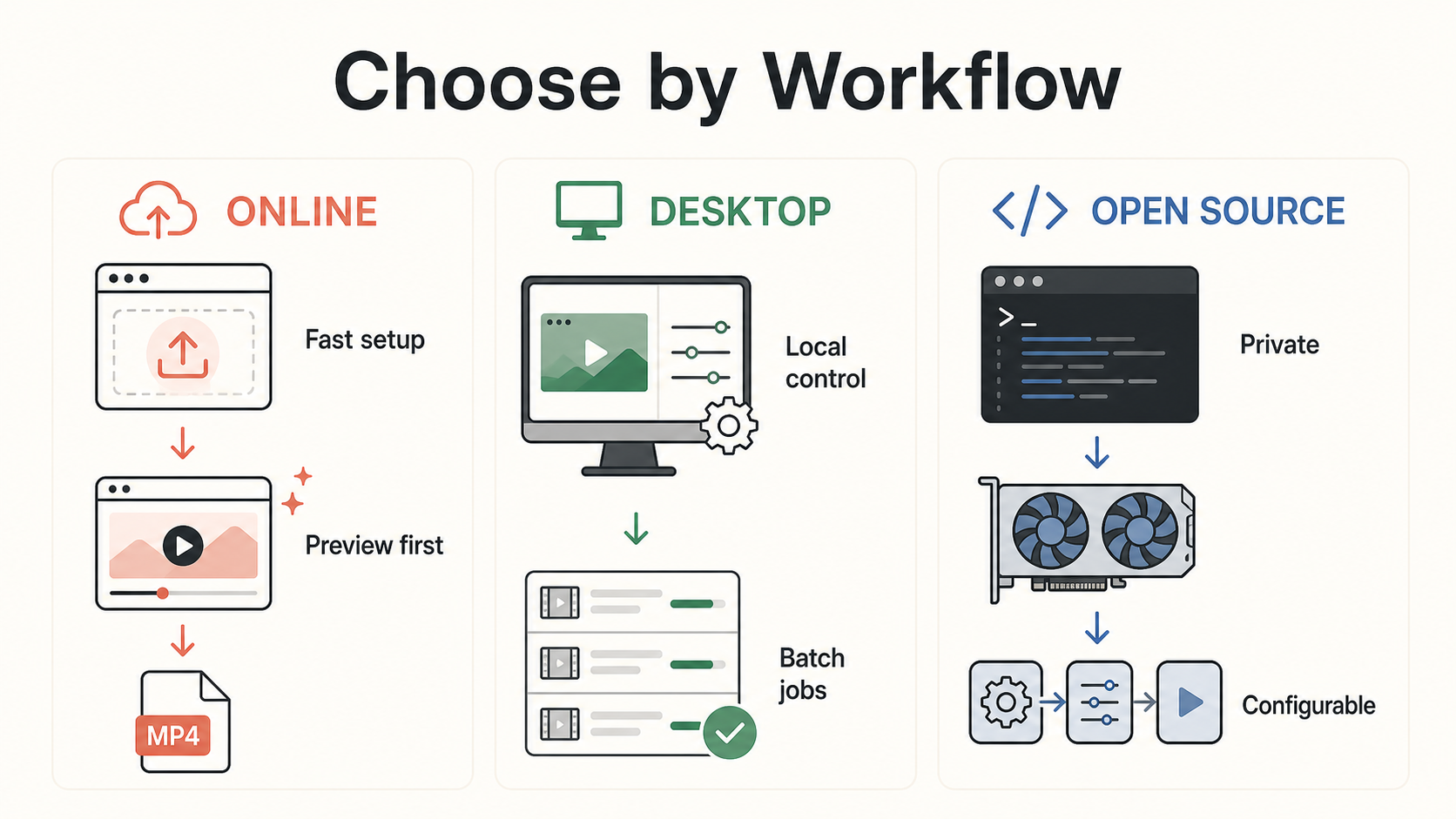
Choose by source, not by resolution badge
Start with the damage in the source and the destination for the output.
| Your footage or goal | Best starting point | Why |
|---|---|---|
| One short compressed MP4 | AI Video Upscaler | Fast setup and preview before export |
| Valuable archive or paid restoration | Topaz Video | More model control and local testing |
| No capable local GPU | TensorPix | Cloud processing handles the compute |
| Social post that still needs editing | CapCut | Upscaling stays inside the creator workflow |
| Old footage needing several repairs | AVCLabs or HitPaw VikPea | Guided models cover denoise, restoration, and motion |
| Private recurring batch | Aiarty | Local processing and broader codec output |
| Free technical pipeline | Video2X | Open-source models and encoder control |
Use the same 10 to 20 second sample when comparing tools. Include a face, small text, fine texture, and motion. Match the target resolution and frame rate. Then inspect the sequence at normal speed and frame by frame.
Watch for:
- Texture that crawls or flickers between frames
- Halos around high-contrast edges
- Skin that becomes smooth, waxy, or gains invented detail
- Text that changes shape rather than becoming clearer
- Noise reduction that erases intentional grain
- A much larger file with no visible viewing benefit
Our 4K upscaling guide explains how to prepare a fair source clip and review the result before export.
Final recommendation
Start with AI Video Upscaler when you need a fast online result and want to inspect the before-and-after output before downloading an MP4. It is the best overall starting point for the broadest group of users in this list.
Choose Topaz Video, AVCLabs, HitPaw VikPea, or Aiarty when local processing and deeper restoration justify desktop setup. Choose TensorPix when cloud compute matters, CapCut when upscaling belongs inside a social edit, and Video2X when open-source control matters more than convenience.
If none of these workflow shapes fits your project, use our AI video upscaler alternatives guide to compare online, desktop, cloud, and local categories before committing.
FAQ
What is the best AI video upscaler for beginners?
AI Video Upscaler is the best starting point for beginners who want a focused browser workflow, a before-and-after review step, and MP4 output without learning a full restoration suite.
Can AI upscale video to 4K?
Yes. AI tools can create a 4K-sized output while reducing noise, compression artifacts, and visible softness. They cannot recover every detail that the camera failed to capture, and they may invent texture when the source has severe damage.
What is the best free AI video upscaler?
AI Video Upscaler offers three no-sign-up Browser Basic runs for quick clips. Video2X is the stronger open-source choice when you can handle local setup and GPU requirements.
Is an online or desktop AI video upscaler better?
Online tools are better for speed, access, and short jobs. Desktop tools are better for private footage, long renders, batch processing, codec control, and repeated model testing.
Should I upscale before or after editing?
Trim and make structural edits first when possible, then upscale before the final encode. Avoid extra compression between steps because each generation can remove information the model needs.